
How to Add or Change User Codes on Your IQ Panel
Manage individual access codes for family members, employees and guests directly from your IQ Panel.
Accessing User Management
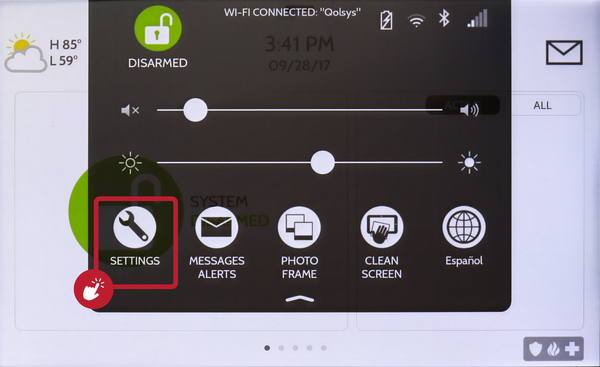
1. Open the settings tray
Swipe down from the grey bar at the top of the screen.

2. Select Settings
Tap Settings, represented by the wrench icon.
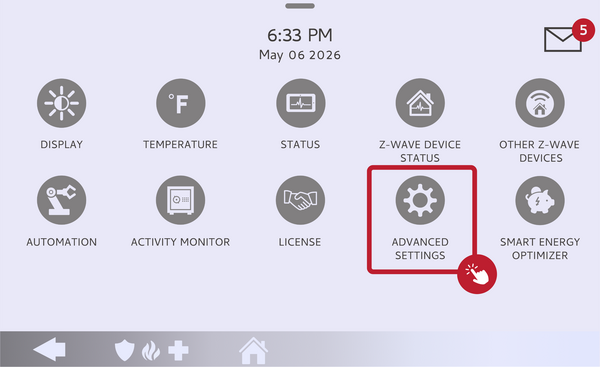
3. Open Advanced Settings
Tap Advanced Settings, represented by the gear icon.
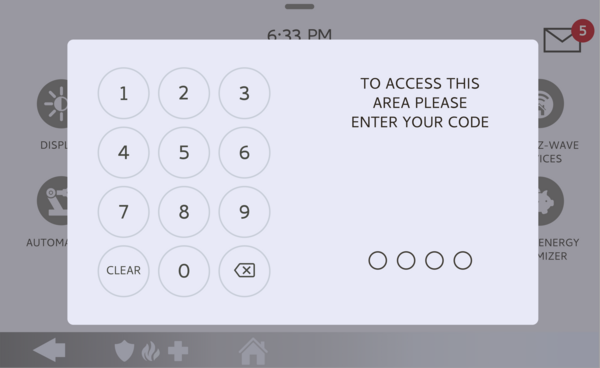
4. Enter your master code
Enter your existing master user code to access the advanced settings menu.
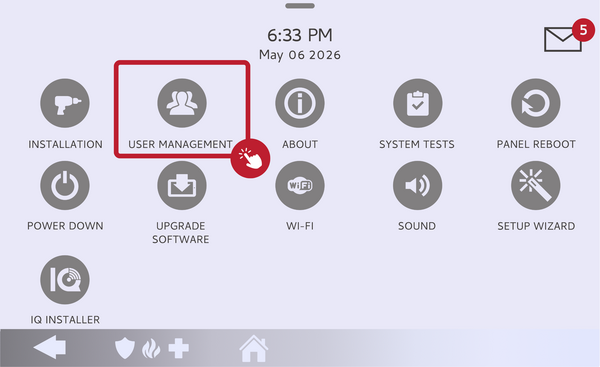
5. Select User Management
Tap User Management to view and manage your existing users.
Adding a New User Code
- Tap Add User.
- Enter the new user's name.
- Enter the desired access code.
- Re-enter the code to confirm it.
- Select the appropriate user type.
- Set an expiration date, if applicable.
- Tap Add User to save.
Understanding User Types
Master
Can manage users, access permitted settings and operate the alarm.
User
Standard everyday access without administrative permissions.
Guest
Intended for visitors or individuals requiring temporary access.
Changing an Existing User Code
- Locate the desired user in User Management.
- Tap the pencil icon beside their name.
- Enter and confirm the new access code.
- Tap Save to apply the changes.
Helpful Tips
- Assign a unique code to each authorized user.
- Avoid sharing your master code.
- Remove access codes that are no longer required.