
How to Arm and Disarm Your Alarm from Your Phone
Use your Alarm.com app to control your security system remotely when your account supports this feature.
Accessing Your Security System
1. Open the app
Sign in to the Alarm.com app and select your security system on the home screen.
Arming
2. Choose an arming mode
Select the mode appropriate for whether anyone is remaining inside.
Arm Stay
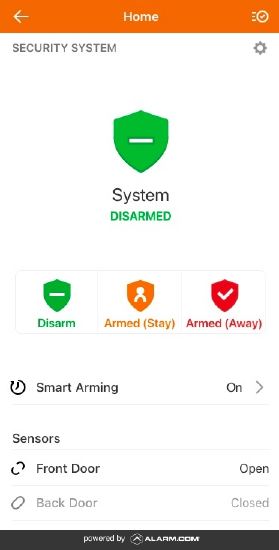
Select the yellow or orange shield when remaining inside. Typically protects perimeter sensors while allowing movement indoors.
Arm Away
Select the red shield when leaving. Typically activates perimeter and interior intrusion sensors.
Disarming
1. Select Disarm
Tap the green shield to disarm your security system.
2. Confirm the status
Wait for the command to complete and verify that the app shows System Disarmed.
Helpful Tip
Always confirm the updated system status before assuming a remote command has completed. App appearance, sensor coverage and available controls may vary.